> ## Documentation Index
> Fetch the complete documentation index at: https://sequence-0fb8d9e6-api_docs.mintlify.site/llms.txt
> Use this file to discover all available pages before exploring further.
# Launching Your Shop with Sequence Builder
> Follow this 9-step guide to learn how to use the Sequence Builder which offers game builders a Shop that can be easily customized and integrated into their game experience without any coding experience needed.
### Prerequisites
Before configuring your Shop, make sure:
* You’ve completed the [Marketplace configuration flow](/solutions/payments/marketplace/hosted) (Marketplace Settings, Page Settings, Wallet Settings)
* You have one or more Sequence deployed item contracts (1155)
## Launch a Shop
Get started quickly at [Sequence Builder](https://sequence.build/) to launch your shop.
Follow this 9-step guide to customize and launch a Shop in minutes with a set of EVM based collectibles.
Complete [steps 1-5 of the following guide to create a project](/solutions/builder/getting-started#get-started).
If you already have a Collectible, skip to the next step. Otherwise, complete [this guide to create a collectible](/solutions/builder/contracts/deploy-an-item-collection) and [add a collection to your collectible](/solutions/builder/collections) to include it in your shop.
After accessing your project and the `Marketplace` nav tab, select the `Activate your Shop` button.
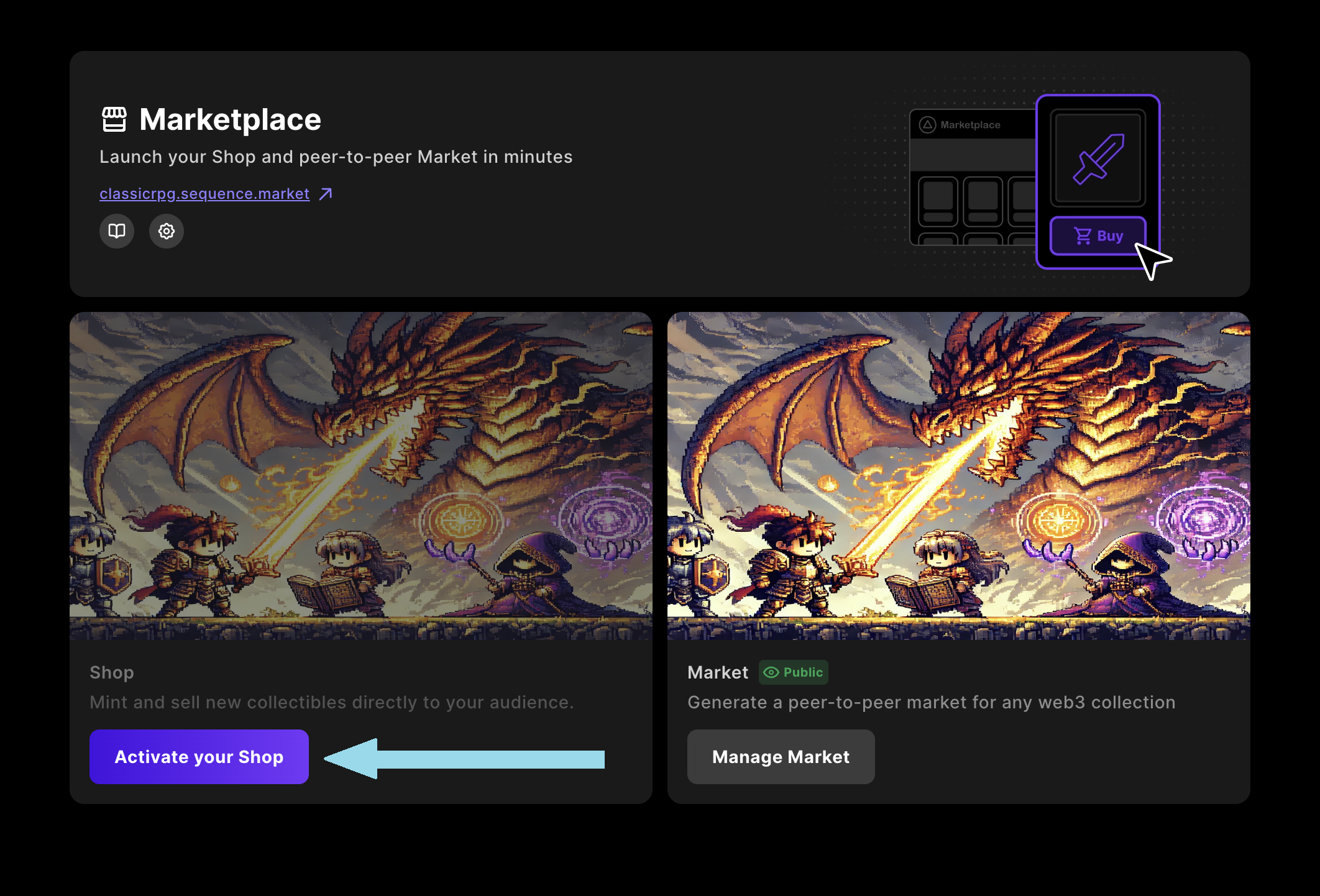 Once the Shop is enabled, you can begin creating sales using one of the supported Sequence sale contracts.
### Supported Sale Contracts
Only Sequence-issued contracts are currently supported:
* `ERC-1155 Item Sale`
> **Note: Allowlists and Merkle proofs are not supported at this time.**
To create or import a sale:
1. Click the **Add Sale** button.
2. Choose one of the following options:
* **Create New Sale** (If you choose this option, you should go to the step 5)
* **Import Existing Sale Contract**
* Simply select the sale contract from the list
Once the Shop is enabled, you can begin creating sales using one of the supported Sequence sale contracts.
### Supported Sale Contracts
Only Sequence-issued contracts are currently supported:
* `ERC-1155 Item Sale`
> **Note: Allowlists and Merkle proofs are not supported at this time.**
To create or import a sale:
1. Click the **Add Sale** button.
2. Choose one of the following options:
* **Create New Sale** (If you choose this option, you should go to the step 5)
* **Import Existing Sale Contract**
* Simply select the sale contract from the list
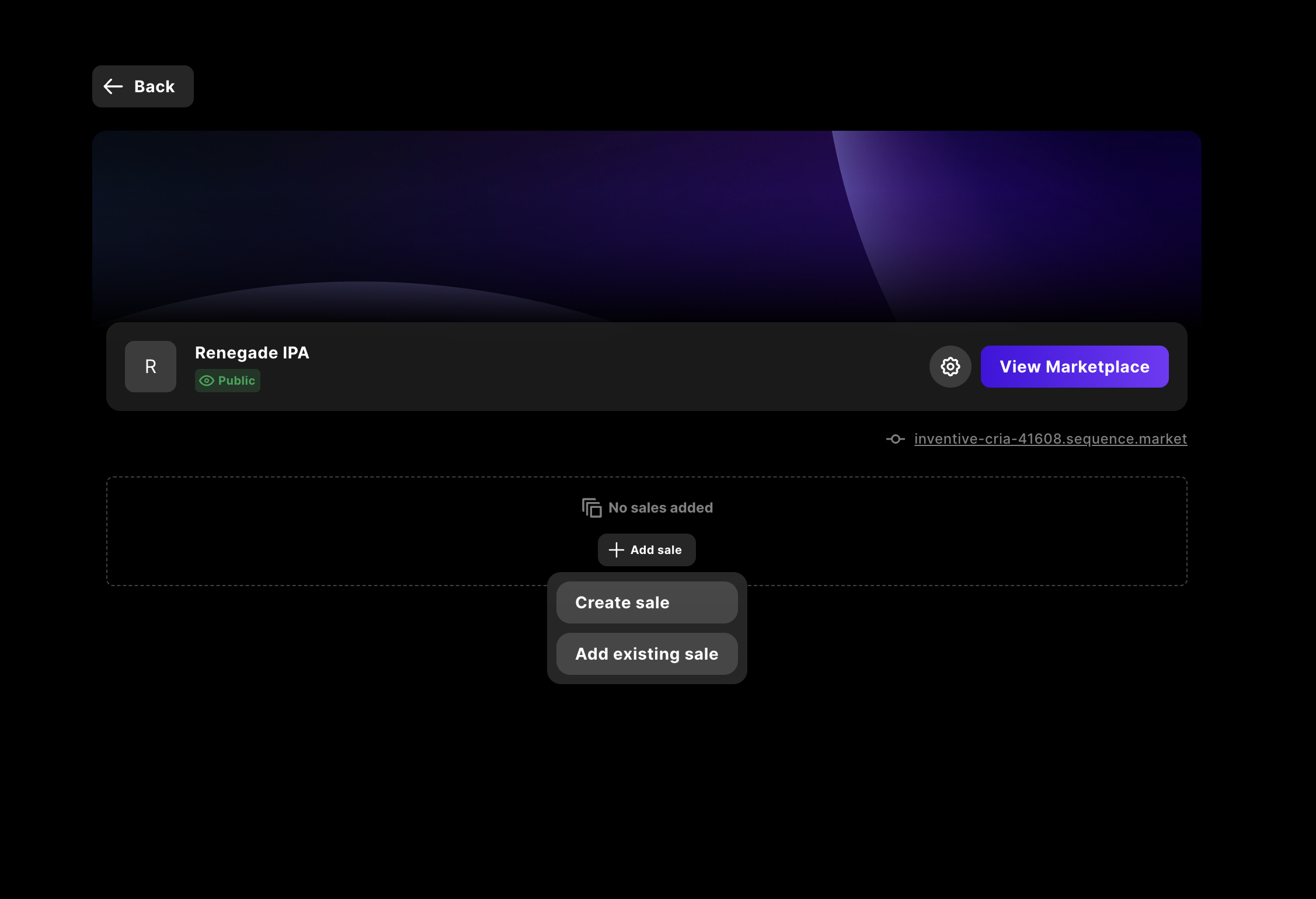 If you choose to create a new sale, follow these steps:
1. **Enter a name** for the sale.
2. **Upload a banner image** for the sale. (Recommended size: **2440 x 960 pixels**)
3. **Select an item contract**:
* Must be a Sequence-deployed `ERC-1155` contract
* Must be linked to a collection with valid metadata
> **Note: If the selected collection is private or missing metadata, image previews and titles may not render correctly.**
### ERC-1155
When creating an ERC-1155 sale, you can choose between two configuration modes:
* **Sell a uniform range** — All tokens share the same default settings and draw from a single pool, unless you override settings for specific tokens.
* **Sell specific items** — Select individual token IDs and assign unique settings to each one.
#### Sell a uniform range
*All tokens share the same default settings and draw from a single pool, unless you override settings for specific tokens.*
**Default sale settings (apply to the whole pool):**
* **Start time** (UTC) — When minting/purchase opens.
* **End time** (UTC) — When minting/purchase closes.
* **Default item price** — Used for any token in the range that doesn’t have an explicit override.
* **Default currency** — Payment token (e.g., sETH).
**Token range settings:**
* **Min token ID** — First token ID included in the pool.
* **Max token ID** — Last token ID included in the pool (inclusive).
* **Remaining supply** — Total mints still allowed across the contract/pool. Must be greater than 0. This value is **dynamic** and will decrease automatically as sales are triggered, reflecting the live remaining number of mints available.
**Custom token settings (optional):**
Add overrides for individual token IDs inside the range (e.g., different price, supply or timing).
#### Sell specific items
*Select individual token IDs and assign unique settings to each one.*
**Sale settings:**
* **Default currency** — Payment token for this sale (e.g., sETH).
**Token configuration:**
1. Click **Add items** and enter one or more token IDs.
2. For each item, set its price, supply, start/end time (if different from any default timing you want), and other available options.
3. Save the list.
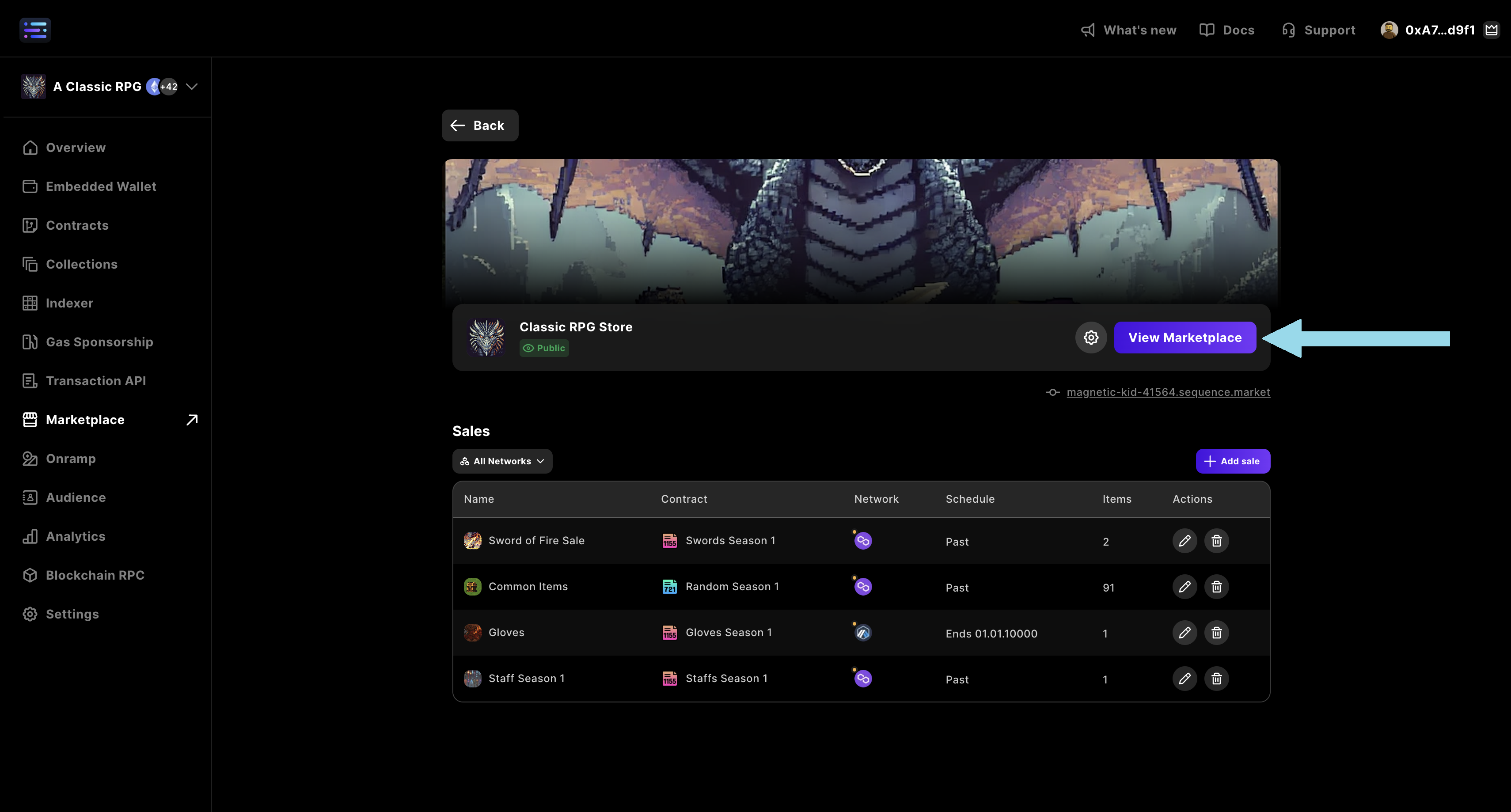
To preview the Shop before making it public:
1. From the Shop section in Builder, click **View Marketplace**.
2. Sign in with your configured wallet.
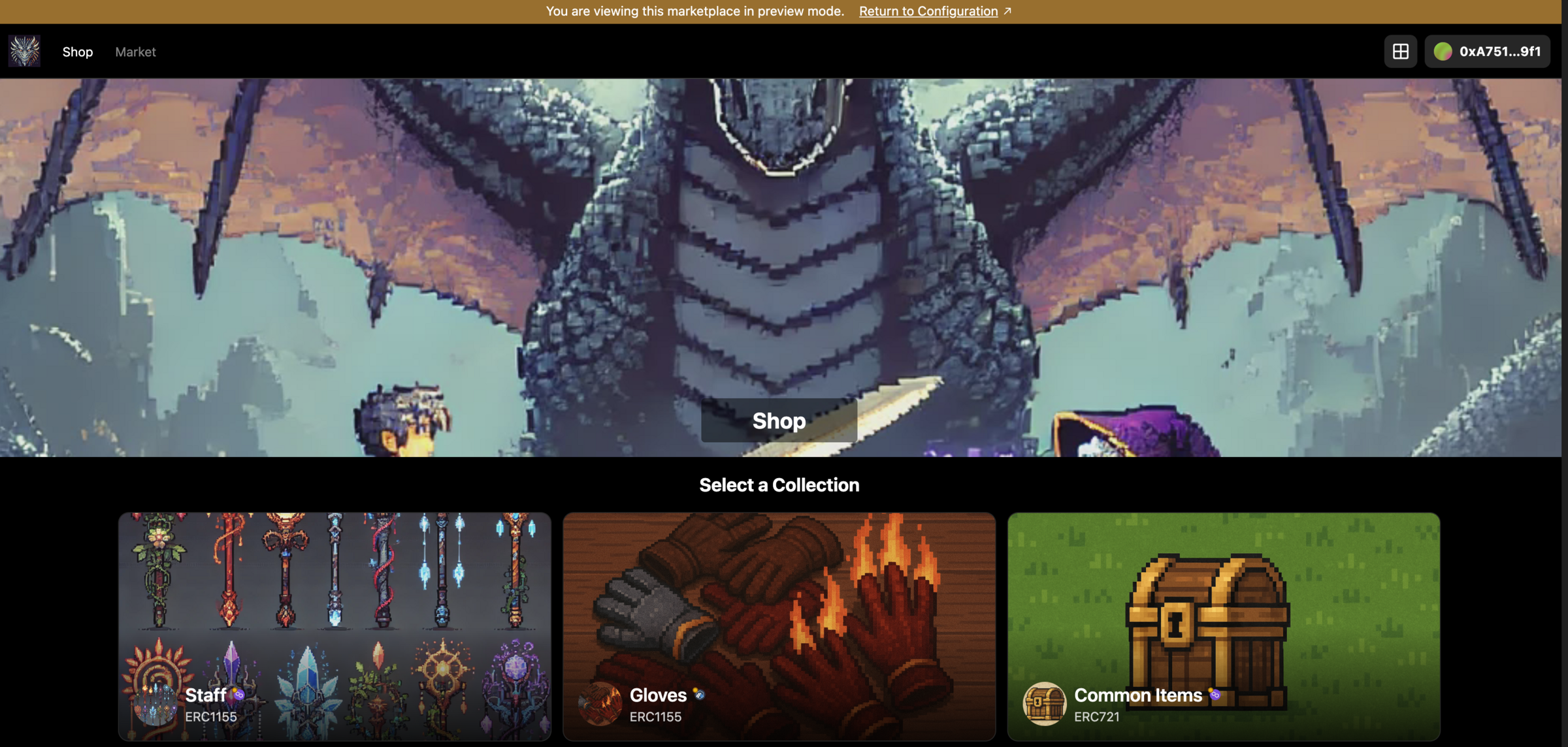
3. Refresh the page to trigger **private mode** preview.
When private mode is active, a notification banner will appear at the top of the page indicating you are in preview mode.
If you choose to create a new sale, follow these steps:
1. **Enter a name** for the sale.
2. **Upload a banner image** for the sale. (Recommended size: **2440 x 960 pixels**)
3. **Select an item contract**:
* Must be a Sequence-deployed `ERC-1155` contract
* Must be linked to a collection with valid metadata
> **Note: If the selected collection is private or missing metadata, image previews and titles may not render correctly.**
### ERC-1155
When creating an ERC-1155 sale, you can choose between two configuration modes:
* **Sell a uniform range** — All tokens share the same default settings and draw from a single pool, unless you override settings for specific tokens.
* **Sell specific items** — Select individual token IDs and assign unique settings to each one.
#### Sell a uniform range
*All tokens share the same default settings and draw from a single pool, unless you override settings for specific tokens.*
**Default sale settings (apply to the whole pool):**
* **Start time** (UTC) — When minting/purchase opens.
* **End time** (UTC) — When minting/purchase closes.
* **Default item price** — Used for any token in the range that doesn’t have an explicit override.
* **Default currency** — Payment token (e.g., sETH).
**Token range settings:**
* **Min token ID** — First token ID included in the pool.
* **Max token ID** — Last token ID included in the pool (inclusive).
* **Remaining supply** — Total mints still allowed across the contract/pool. Must be greater than 0. This value is **dynamic** and will decrease automatically as sales are triggered, reflecting the live remaining number of mints available.
**Custom token settings (optional):**
Add overrides for individual token IDs inside the range (e.g., different price, supply or timing).
#### Sell specific items
*Select individual token IDs and assign unique settings to each one.*
**Sale settings:**
* **Default currency** — Payment token for this sale (e.g., sETH).
**Token configuration:**
1. Click **Add items** and enter one or more token IDs.
2. For each item, set its price, supply, start/end time (if different from any default timing you want), and other available options.
3. Save the list.
To preview the Shop before making it public:
1. From the Shop section in Builder, click **View Marketplace**.
2. Sign in with your configured wallet.
3. Refresh the page to trigger **private mode** preview.
When private mode is active, a notification banner will appear at the top of the page indicating you are in preview mode.
 Open shop settings to update configuration.
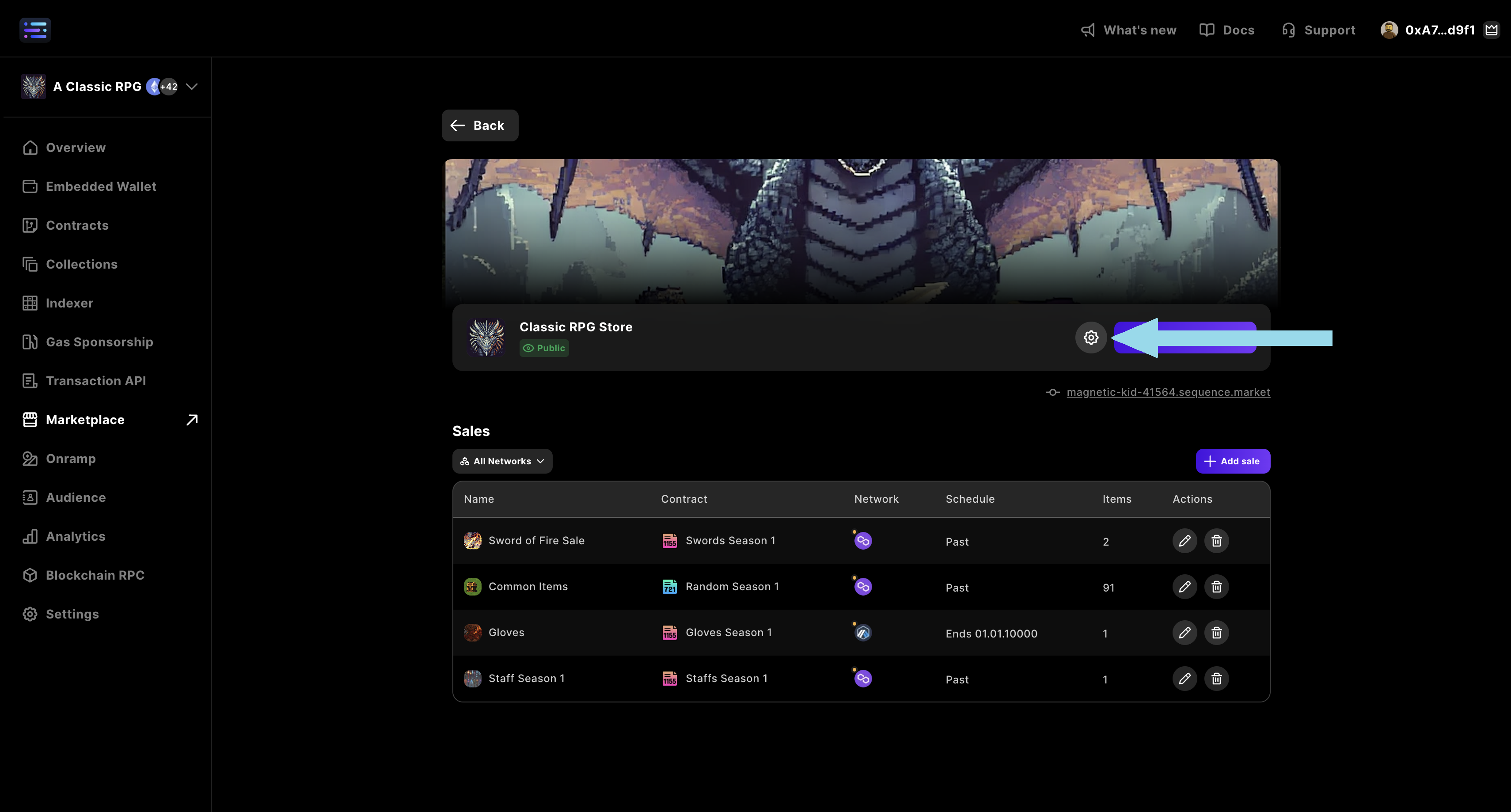 ##### `Marketplace Name`
Edit and update the marketplace name, located in the top left-hand corner, over the banner, and in the webpage document title (i.e. the browser tab title).
##### `Custom Subdomain`
Add a custom domain so that users can access the marketplace from a public URL of your choosing that is not randomly generated.
##### `Website`
Add an external website to link to.
##### `Discord`
Add a Discord server to be linked to with an icon.
##### `X`
Add an X profile to be linked to with an icon.
##### `Instagram`
Add an Instagram account to be linked to with an icon.
##### `YouTube`
Add a YouTube page to be linked to with an icon.
##### `TikTok`
Add a TikTok page to be linked to with an icon.
##### `Header logo`
Add a logo that will appear on the left side of the header on your page.
> Recommendation: horizontal watermark 80px height
##### `Favicon`
Add a favicon that will appear in the browser tab when users visit your page.
> Recommendation: 1:1 aspect ratio 320x320
##### `Thumbnail`
Add a thumbnail that will be displayed as the banner image when logging in with Sequence.
##### `Market`
###### - `Banner`
Edit and update the banner image located at the top of the marketplace page.
> Recommendation: 4:1 aspect ratio, 2400x600
###### - `Visibility`
Edit and update your marketplace visibility. Options: Private & Public.
##### `Shop`
###### - `Banner`
Edit and update the banner image located at the top of the shop page.
> Recommendation: 4:1 aspect ratio, 2400x600
###### - `Visibility`
Edit and update your shop visibility. Options: Private & Public.
##### `Select Sequence Wallet Type`
Select wallet type [Sequence Embedded Wallet](/solutions/wallets/developers/embedded-wallet/overview).
##### `Enable Multiple Supported Wallets`
Add various other community-based wallets, like Coinbase or WalletConnect.
##### `Enable EIP-6963 Wallets`
EIP-6963, titled "Multi Injected Provider Discovery," is an Ethereum Improvement Proposal that introduces a standardized method for decentralized applications (apps) to detect and interact with multiple wallet providers injected into a web page so wallets don't overlap in the injected JavaScript global object.
Once you have finished testing your Shop and validated all configurations:
1. Go to the **Marketplace → Pages Settings** tab.
2. Change the **Shop visibility** from **Private** to **Public**.
At this point, your Shop will be live, and anyone with the link can access and purchase items from your sales.
Once you're finished, launch your Shop and share it with your friends and community!
##### `Marketplace Name`
Edit and update the marketplace name, located in the top left-hand corner, over the banner, and in the webpage document title (i.e. the browser tab title).
##### `Custom Subdomain`
Add a custom domain so that users can access the marketplace from a public URL of your choosing that is not randomly generated.
##### `Website`
Add an external website to link to.
##### `Discord`
Add a Discord server to be linked to with an icon.
##### `X`
Add an X profile to be linked to with an icon.
##### `Instagram`
Add an Instagram account to be linked to with an icon.
##### `YouTube`
Add a YouTube page to be linked to with an icon.
##### `TikTok`
Add a TikTok page to be linked to with an icon.
##### `Header logo`
Add a logo that will appear on the left side of the header on your page.
> Recommendation: horizontal watermark 80px height
##### `Favicon`
Add a favicon that will appear in the browser tab when users visit your page.
> Recommendation: 1:1 aspect ratio 320x320
##### `Thumbnail`
Add a thumbnail that will be displayed as the banner image when logging in with Sequence.
##### `Market`
###### - `Banner`
Edit and update the banner image located at the top of the marketplace page.
> Recommendation: 4:1 aspect ratio, 2400x600
###### - `Visibility`
Edit and update your marketplace visibility. Options: Private & Public.
##### `Shop`
###### - `Banner`
Edit and update the banner image located at the top of the shop page.
> Recommendation: 4:1 aspect ratio, 2400x600
###### - `Visibility`
Edit and update your shop visibility. Options: Private & Public.
##### `Select Sequence Wallet Type`
Select wallet type [Sequence Embedded Wallet](/solutions/wallets/developers/embedded-wallet/overview).
##### `Enable Multiple Supported Wallets`
Add various other community-based wallets, like Coinbase or WalletConnect.
##### `Enable EIP-6963 Wallets`
EIP-6963, titled "Multi Injected Provider Discovery," is an Ethereum Improvement Proposal that introduces a standardized method for decentralized applications (apps) to detect and interact with multiple wallet providers injected into a web page so wallets don't overlap in the injected JavaScript global object.
Once you have finished testing your Shop and validated all configurations:
1. Go to the **Marketplace → Pages Settings** tab.
2. Change the **Shop visibility** from **Private** to **Public**.
At this point, your Shop will be live, and anyone with the link can access and purchase items from your sales.
Once you're finished, launch your Shop and share it with your friends and community!